Getting started#
Chassis is a Shopify theme for stores that sell riding and racing gear: helmets, jackets, suits, gloves, boots, protection and accessories. This guide covers the first steps after installing it.
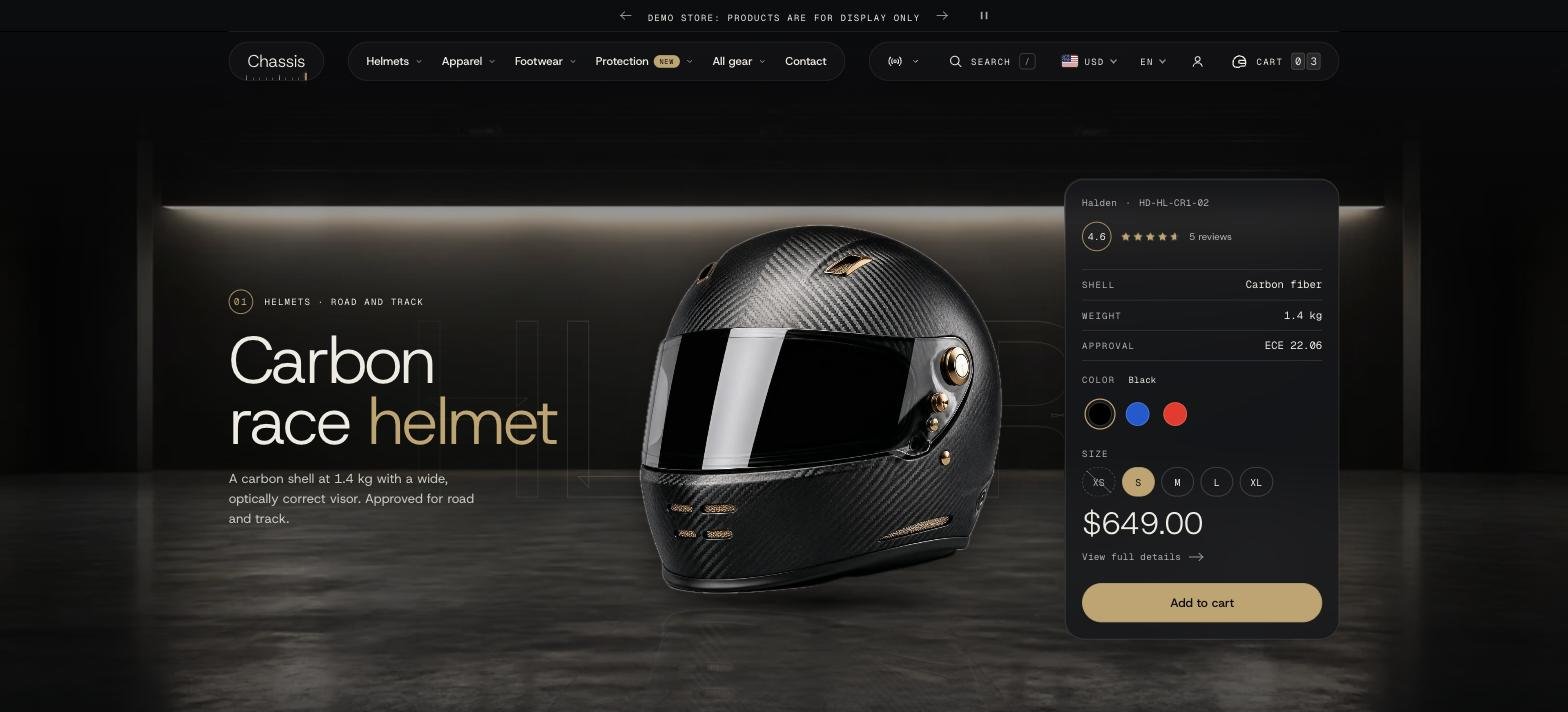
Install the theme#
- In the Shopify Theme Store, open Chassis and click Try theme to test it, or buy it to add it to your theme library.
- In your admin, go to Online Store > Themes. Chassis appears under Theme library.
- Click Customize to open it in the theme editor. Your live store doesn't change until you click Publish.
Your first hour#
Work through these in order. Each one links to its guide.
- Logo and colors: Theme settings > Logo and favicon, then Theme settings > Colors. See Theme settings.
- Fonts: Theme settings > Typography.
- Menu: build your main menu in Content > Menus, then set up the header. See Header and navigation.
- Collections: create collections such as Helmets, Jackets, Gloves and Boots in Products > Collections. Smart collections by product type keep themselves up to date.
- Home page: replace the demo content section by section. See Sections.
- Product page: choose a gallery layout and add your size charts. See Product page.
- Variant picker: tell the theme which options are swatches and which are buttons, in Theme settings > Variant picker.
- Footer: menus, contact details and policies. See Footer.
- Reviews: install a reviews app. See Apps and reviews.
Tips for product photos#
- Plain studio background: photos shot on one plain color (white, light gray, black) work best. With Stage color and Image background set to From the photos, the gallery and product cards take the photo's background color, so the product seems to stand on the page.
- Same size and framing: use the same aspect ratio for every photo of a kind of product, for example square for helmets and portrait for jackets.
- Turntable: for a helmet or boot, shoot 8 to 24 photos around the product and choose the Turntable gallery layout. Shoppers can drag to turn it.
- One variant image per color: so the gallery can switch to the chosen color.
Recommended sizes are shown under each image setting in the editor.