Customer photos#
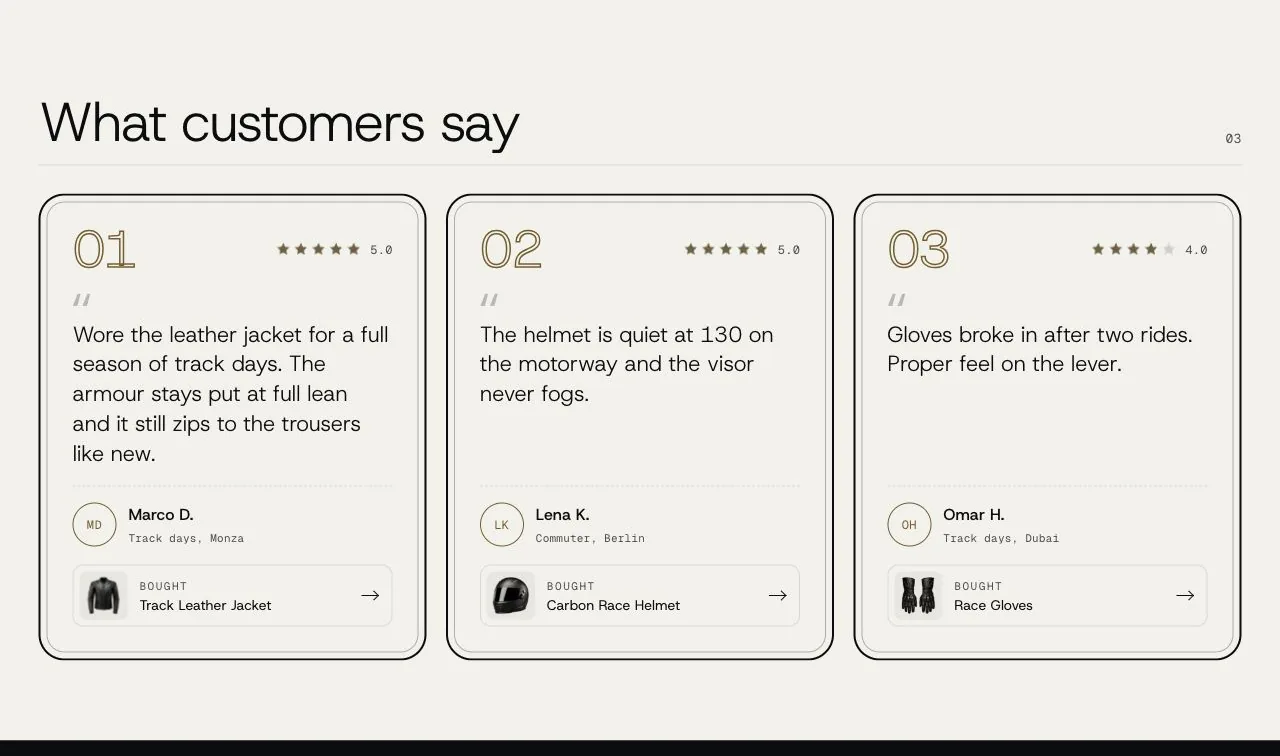
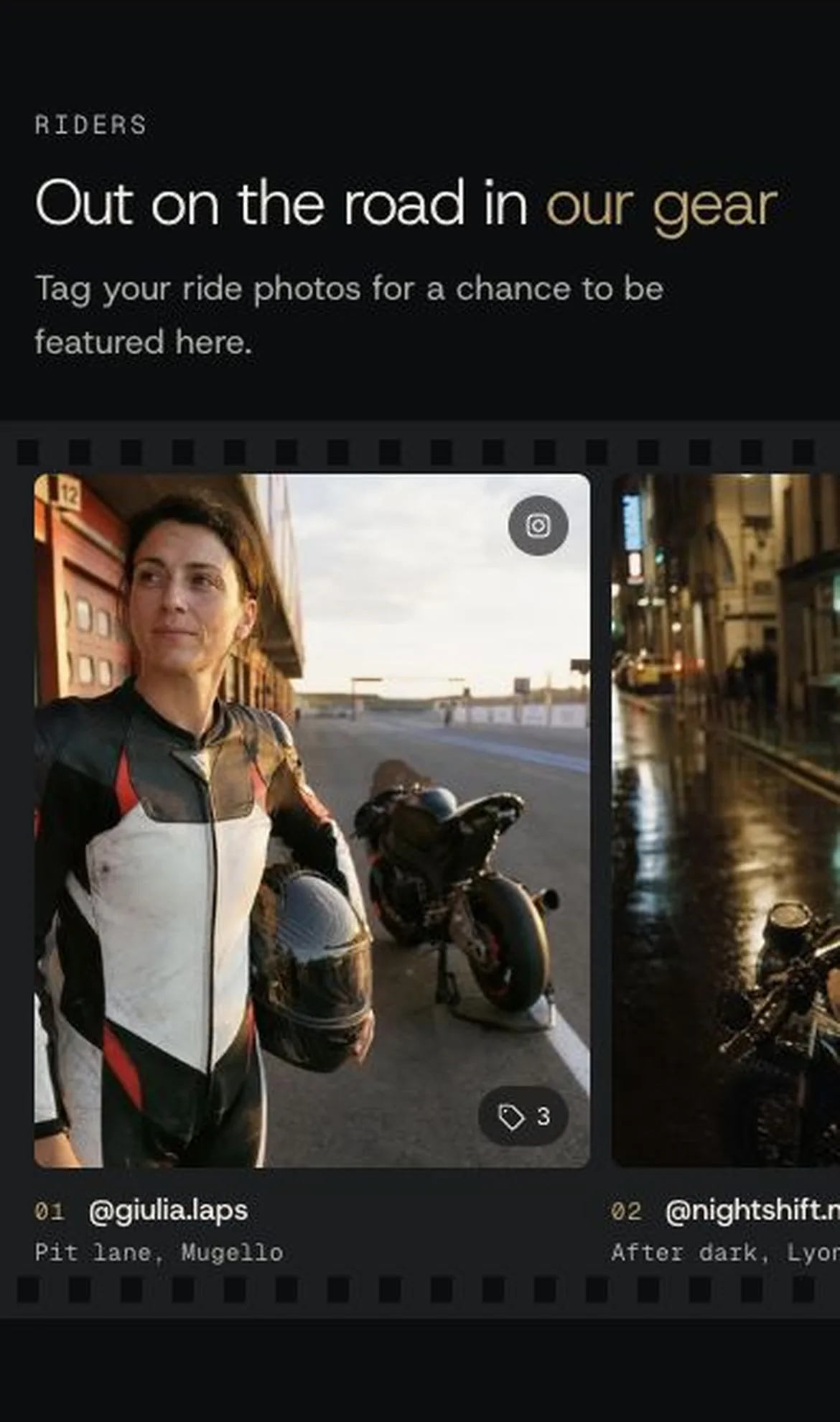
Show photos or clips from customers, with links to the products they use.
Live example#
Add this section#
Select Add section > Customer photos on the template you want to edit.
Settings#
General settings#
- Subheading: A short line above the heading.
- Heading: Enter and format a short line of text.
- Text: Enter and format the text.
- Button label: Name the button that links from this section.
- Link: Choose where that button takes shoppers.
- Show social media icons: Add your profiles in Theme settings > Social media.
Layout#
- Layout: Choose Sliding row or Grid.
- Columns: 3–6.
- Image shape: Choose Portrait, Square, or Landscape.
- Show film edges
- Show frame numbers
- Show names and captions
- Show photo viewer: Shows the photo large with its products. When off, a photo opens its link.
- Viewer button label: Text on the add-to-cart button inside the photo viewer.
- Autoplay videos: Muted, only while in view and when animations are on.
- Color scheme: Choose a color scheme from Theme settings > Colors.
Section padding#
- Top padding: 0–160 px.
- Bottom padding: 0–160 px.
Mobile layout#
- Layout: Choose Sliding row or Grid.
- Columns: Choose 1 or 2.
- Show names and captions
- Top padding: 0–120 px.
- Bottom padding: 0–120 px.
Blocks#
Photo#
General settings#
- Image: 1080 x 1350px recommended. Also the cover of a video link.
- Video: Choose a video from your library. Plays muted in the section and with sound in the viewer. Replaces the image.
- Video link: Paste a supported video link. YouTube or Vimeo, played in the viewer. The image is its cover.
- Name or handle: Credit the customer or creator.
- Caption: Add context about the photo or clip.
- Products in this photo: Choose one or more products.
- Network icon: Choose From the link, Instagram, TikTok, YouTube, Facebook, X, Pinterest, Strava, or None. Shown in the photo's corner and beside View post.
- Link: Choose the page or address to open. The original post. Shows in the viewer as View post, or opens from the photo when the viewer is off.
Custom Liquid#
General settings#
- Liquid code: Add the custom content supplied by your app or developer. Add app snippets or other code.
App block#
Add a block supplied by an installed app. Its settings come from that app.