
404 page
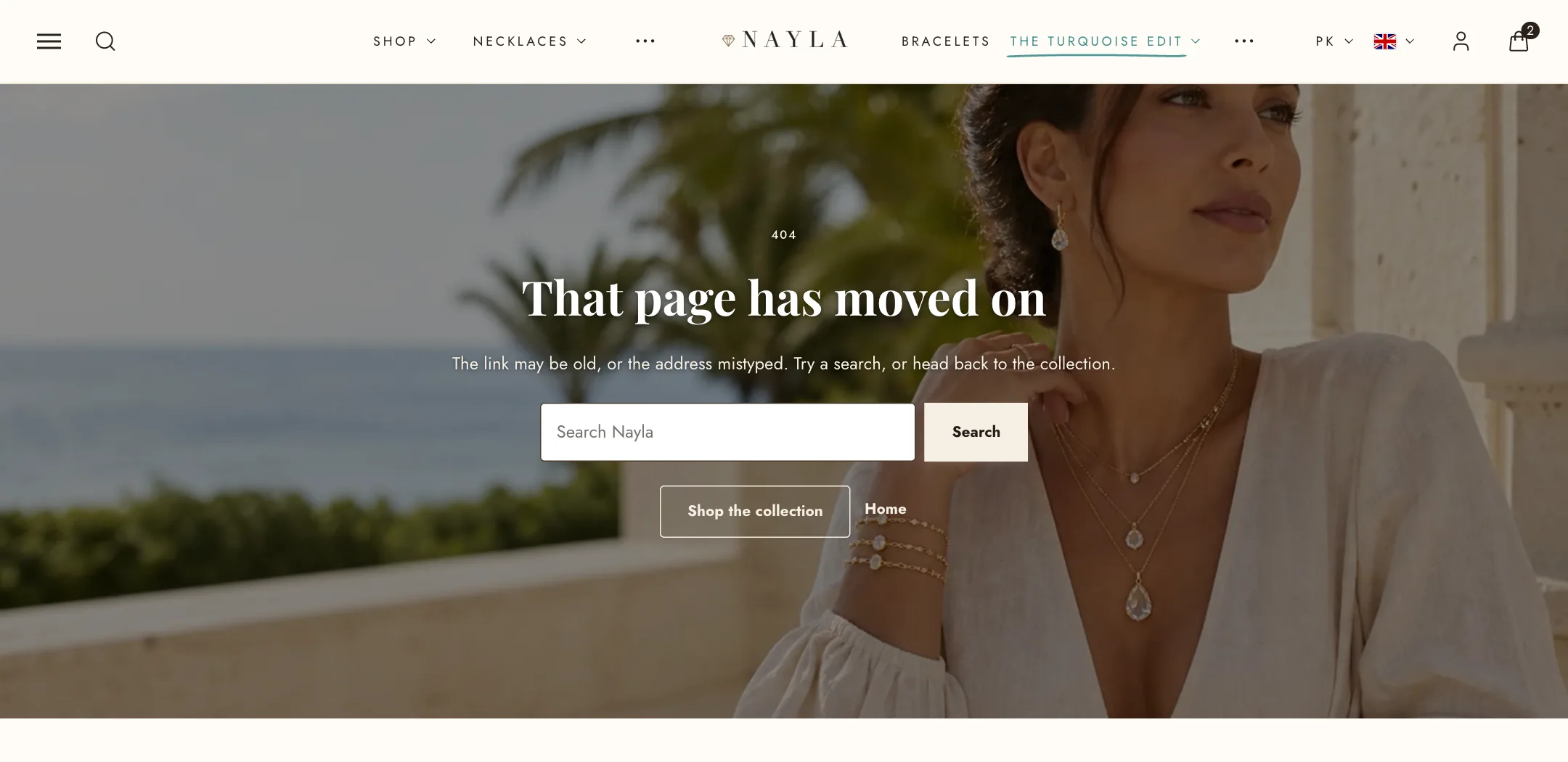
When a shopper follows an outdated link or mistypes an address, they land on the 404 page. The theme explains what happened and offers three ways forward: search the store, continue shopping, or return to the home page. Each element is a block, so you can edit the wording, styling, and imagery.
Set it up
Section titled “Set it up”Switch the editor to the 404 page. The words are the same content blocks every banner uses: an eyebrow, a heading, text, a Search box, and buttons, inside a Content block placed with the nine positions. Reorder them, remove any, or add a countdown or an app block.
Give it a picture
Section titled “Give it a picture”Under Media, add an Image or a silent looping Video. Media position puts it Behind the words, edge to edge under the whole section at the height you set, or Beside the words as a split with Media width setting the share. An Overlay keeps the words readable. Without media the words sit on the colour scheme alone. Width never narrows the media; it only decides how wide the words run.
For an illustration above the message, the way many well-known error pages do it, add an Image block to the content group: a transparent PNG or SVG, a width for desktop and phone, alignment, corners and an optional link. The Image block works in every content group, so a banner or the password page can carry one too.
Under Layout, Height is Fit the words, full screen, adapt to the image, or a custom height. Width and Corner radius shape the frame. Under Look, pick the Color scheme; with a picture behind the words choose one with light text.
Popular products
Section titled “Popular products”Below the message, the page ships with a Featured collection section titled “Popular right now”, showing four products from your whole catalogue with a Shop all link. Point it at a collection you would rather show, remove it, or add other sections under it: a collection list works well.
The search box
Section titled “The search box”The Search box block sends the shopper to the search page with what they typed. It takes a placeholder, a button label, the theme’s button styles and corners, and a width. It is a block, so it can also go in any other content group: a banner, the password page, a text orbit.
On mobile
Section titled “On mobile”Under Mobile layout: a phone picture, its own height, and whether the words sit over the picture or below it. Below turns the media into a band above the words at the phone height.