
Video banner
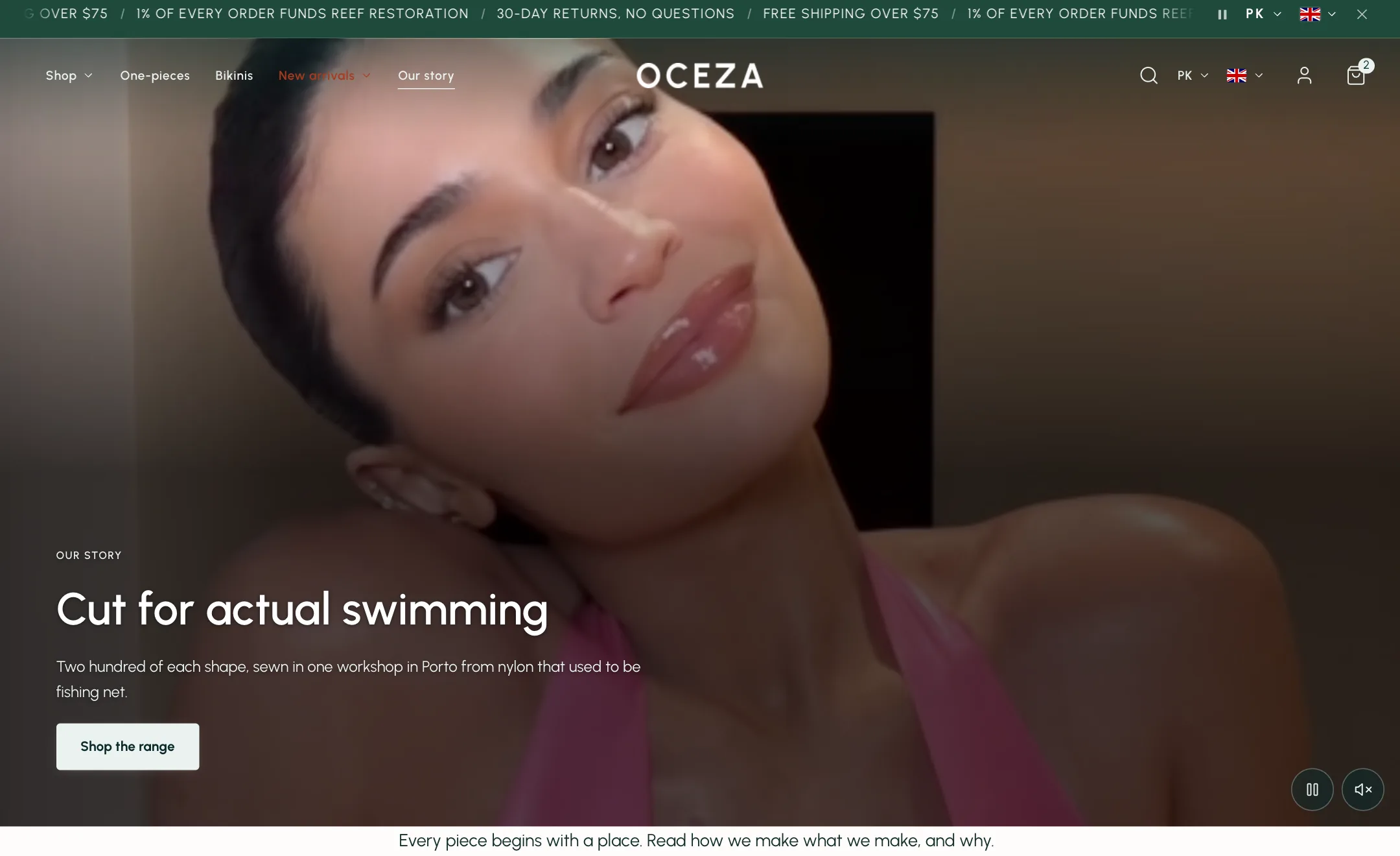
A video banner combines moving media with the same layout controls used by other banners: height, overlay, and content blocks placed in any of nine positions. Its additional settings control the video source and playback behaviour.
Add it
Section titled “Add it”On any page, choose Add section → Banners → Video banner. It arrives with a short heading, a line of text and a button, placed in the middle.
Choose the video
Section titled “Choose the video”Under Video you have two ways to bring one in. Use one or the other.
- Video takes a file from your store’s files. Choose one you have uploaded, or upload it there and then. Short and small is best: a few seconds, under 10 MB.
- Or a YouTube or Vimeo link accepts the full address of a video on either service. The external player loads only when the shopper approaches the banner, allowing the rest of the page to load first.
If both sources are set, the uploaded video takes priority.
Cover image is the still the shopper sees while the video loads, and in the places a video cannot play. For an uploaded video, the theme uses its first frame when you leave this empty. For a YouTube link it uses YouTube’s own small still, which looks soft on a large screen, so upload a cover for a sharp banner.
Video description is a sentence saying what the video shows. Screen readers read it out. Fill it in.
Choose how it plays
Section titled “Choose how it plays”Playback has two settings.
- Plays silently in a loop is a moving background. It starts on its own, has no sound, and repeats. A small pause button always sits in a corner so a shopper can stop it. Turn on Show a sound button to add a second button beside it that turns the sound on. Buttons position picks the corner.
- Plays with sound when tapped shows the cover with a large play button in the middle. When the shopper taps it, the play button steps aside and the video plays with sound and the usual controls. Your words stay on screen; set While the video plays to Hide the words if you want a clear frame instead. When it ends, the cover comes back.
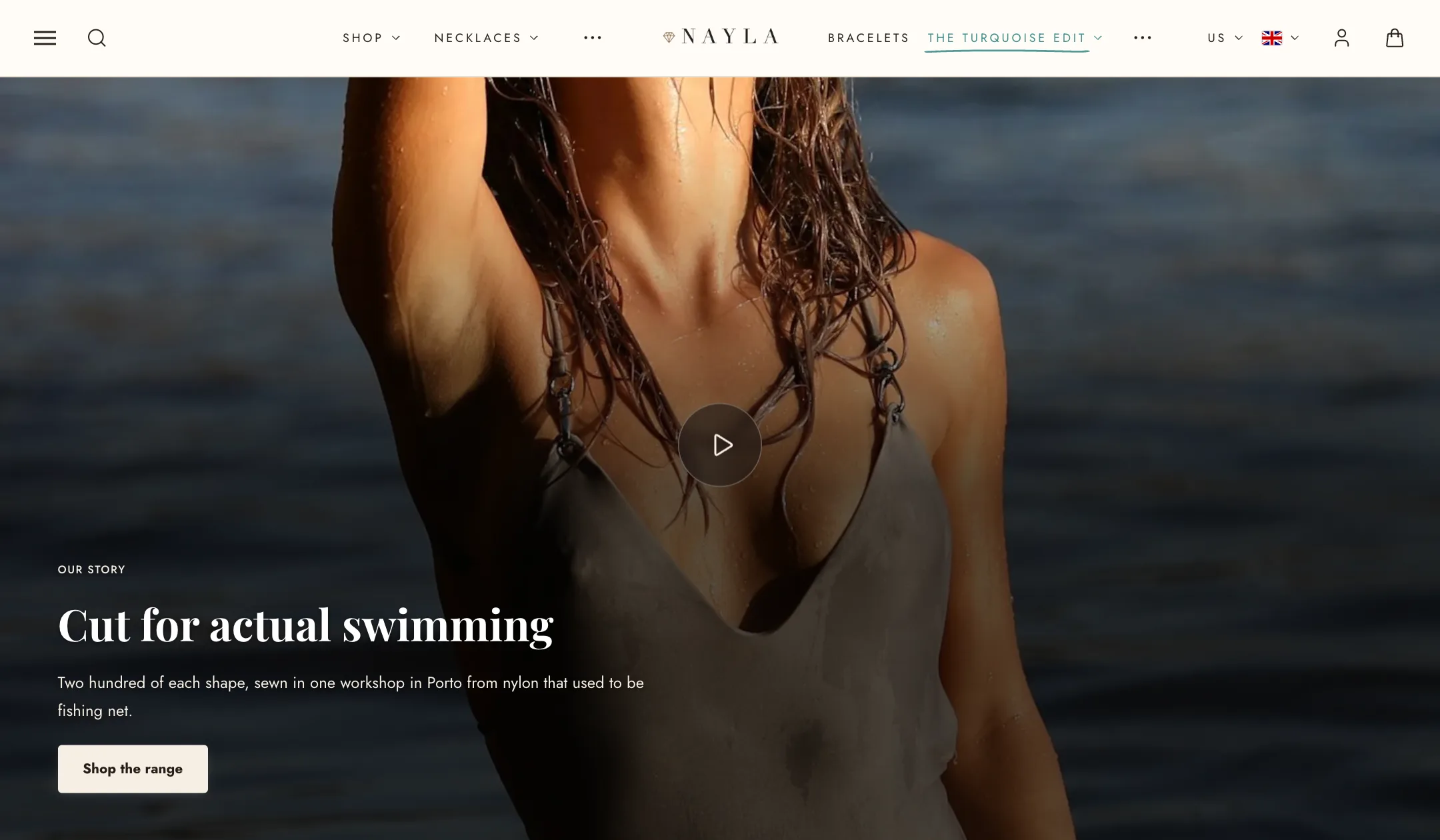
Banner link makes the whole banner a link. It is only available with the silent loop, because a tapped banner needs its tap for the play button.
A silent loop pauses when it scrolls out of view and continues when it comes back. When the theme’s Animations switch is off, or a shopper’s phone asks for less data, the video does not start on its own and the pause button offers play instead.
Size and shape
Section titled “Size and shape”Under Layout, Height sets the shape of the banner: full screen, one of the standard shapes from ultrawide to portrait, a custom height in pixels, or Adapt to video, which uses the video’s own shape.
Width is boxed or full width. Corner radius rounds the corners. Overlay and Overlay opacity put a dark, light or gradient shade over the video so your words stay readable. With tapped playback, the overlay is only removed when you choose to hide the words.
Show under a transparent header is for a video banner at the very top of the home page. The header sits over the video instead of above it.
The words
Section titled “The words”The words are content blocks, the same ones the slideshow and split banner use. Select the Content block inside the section to move it: nine positions, a nudge in either direction, a maximum width, and a text shadow. Inside it, add or remove an image, eyebrow, heading, text, countdown, search box or buttons, and any blocks that apps provide.
Use the second content block for an additional message, such as a badge in one corner and a call to action in another. The block remains hidden when it is empty.
On mobile
Section titled “On mobile”Under Mobile layout:
- Video takes a separate cut for phones. Upload a portrait edit here and phones play it instead of the wide one. Leave it empty and the desktop video plays.
- Cover image is the phone version of the cover.
- Height can follow the desktop shape or have its own. The default is portrait (4:5).
- Words puts the content over the video or below it. Below is the safer choice for a long message on a small screen.

Spacing
Section titled “Spacing”Section spacing works as it does everywhere in the theme: the space below this section is this section’s to set, for desktop and mobile separately. A negative value pulls the next section up over it.