
Store messages
Five sections that talk to the shopper rather than show products. The announcement bar and contact form sit on pages; coupons, the sign-up popup and the age check float over them and live under Sections in the editor’s left column.
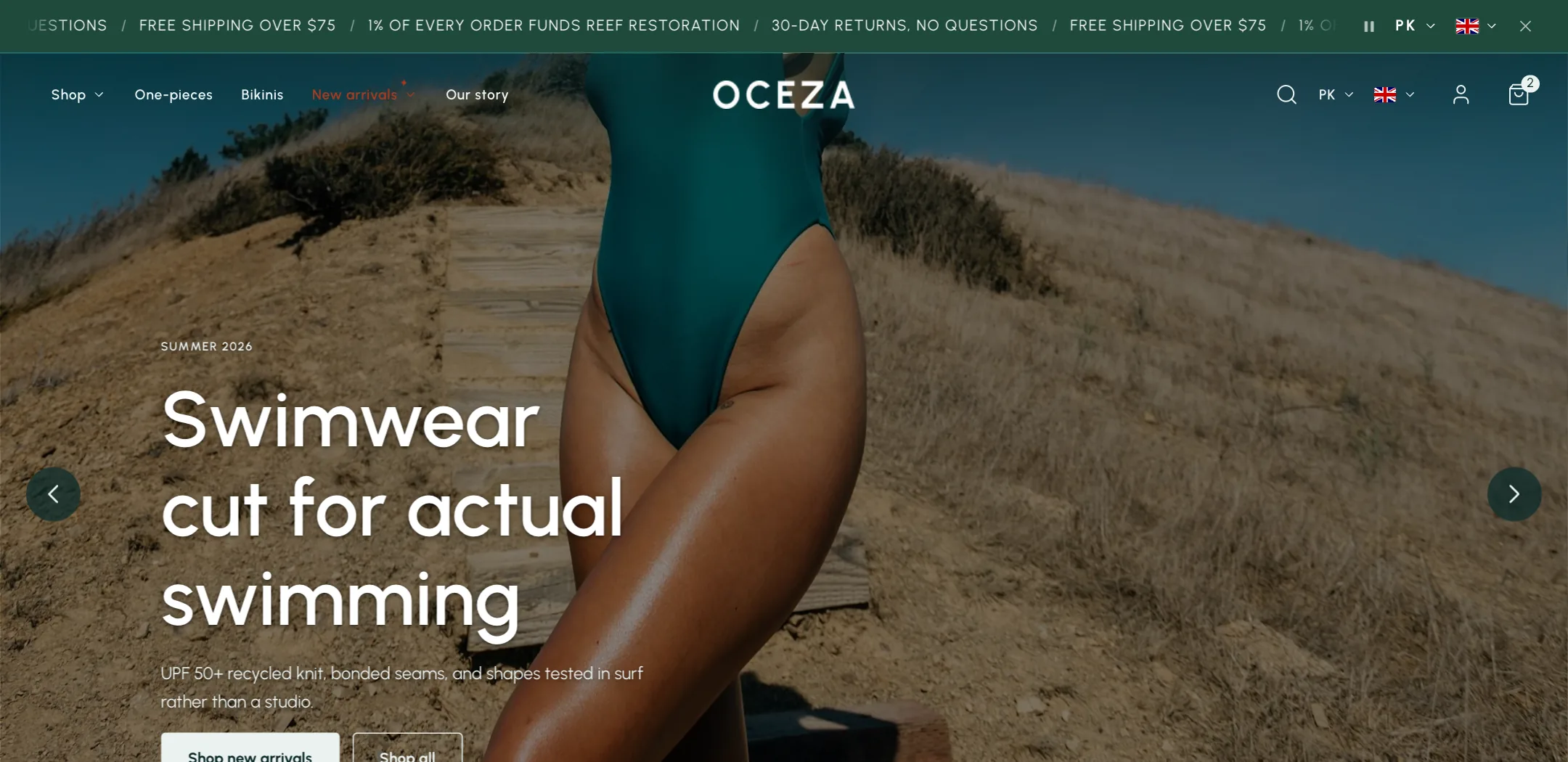
Announcement bar
Section titled “Announcement bar”A line at the very top for shipping news or a promotion. Each Message is a block with text, a link and an optional icon. Show on all pages or the home page only. Pick the colour scheme, height, font and size, and a Separator between messages. Under Motion, messages scroll as a marquee at the speed you choose or sit still. Let shoppers close the bar adds a close button; the bar stays closed until the messages change. Under Localization, the country and language pickers can sit in this bar, for header layouts that have no room for them. Width keeps the messages and pickers inside the page margins, or lets them reach the screen edges.
Contact form
Section titled “Contact form”The Contact form section posts to your store email. Write the heading and text, choose whether they sit beside or above the form and on which side, and add a picture or video. Under Store details, show the address, phone, email, opening hours and social links from your store settings. Each field on the form is a block, so add, rename, reorder or require fields as you like. Under Button: the label, style and width.
Coupons
Section titled “Coupons”A small button in a corner of every page that opens a tray of your current discount codes. Each Coupon block has a picture or icon, a heading, text, the Discount code the shopper copies with one tap, or a Small note for an offer with no code, a button, and its own colour scheme so one can stand apart. Under Tab: the tray opens as a drawer or a slide popup, the button’s position, text, icon and animation, and whether it shows how many coupons there are. Let shoppers hide the button keeps it away for the days you set.
Sign-up popup
Section titled “Sign-up popup”A newsletter form that opens over the page. Under When it shows: after a few seconds, after scrolling a set depth, when the cursor leaves the page, or right away; Stay closed for a number of days after the shopper closes it; every page or the home page only; and whether signed-in customers see it. Under Look: colour scheme, position, size, a picture on the left, right or top with its Image ratio, a background picture with a shade, and the content alignment. The words are blocks: eyebrow, heading, text, the newsletter form, buttons and a countdown. On mobile it is a sheet from the bottom or a popup in the middle, and can be turned off.
Age check
Section titled “Age check”Asks visitors to confirm their age before entering. How they answer is yes-or-no buttons or their date of birth checked against Minimum age. Remember their answer for a number of days. Under Message: your logo, heading, text, the two button labels and the small print with links to your policies. Under If they are too young: show a message, or send them to another web address. A background picture with an overlay sits behind it.